How to Syncronize Content from Entire Nodes/Folders (Parent page + Child Pages)
Click on the Channels option on the upper left side
Click on the Channel you want to synchronize content from (e.g., Eat Pecans)
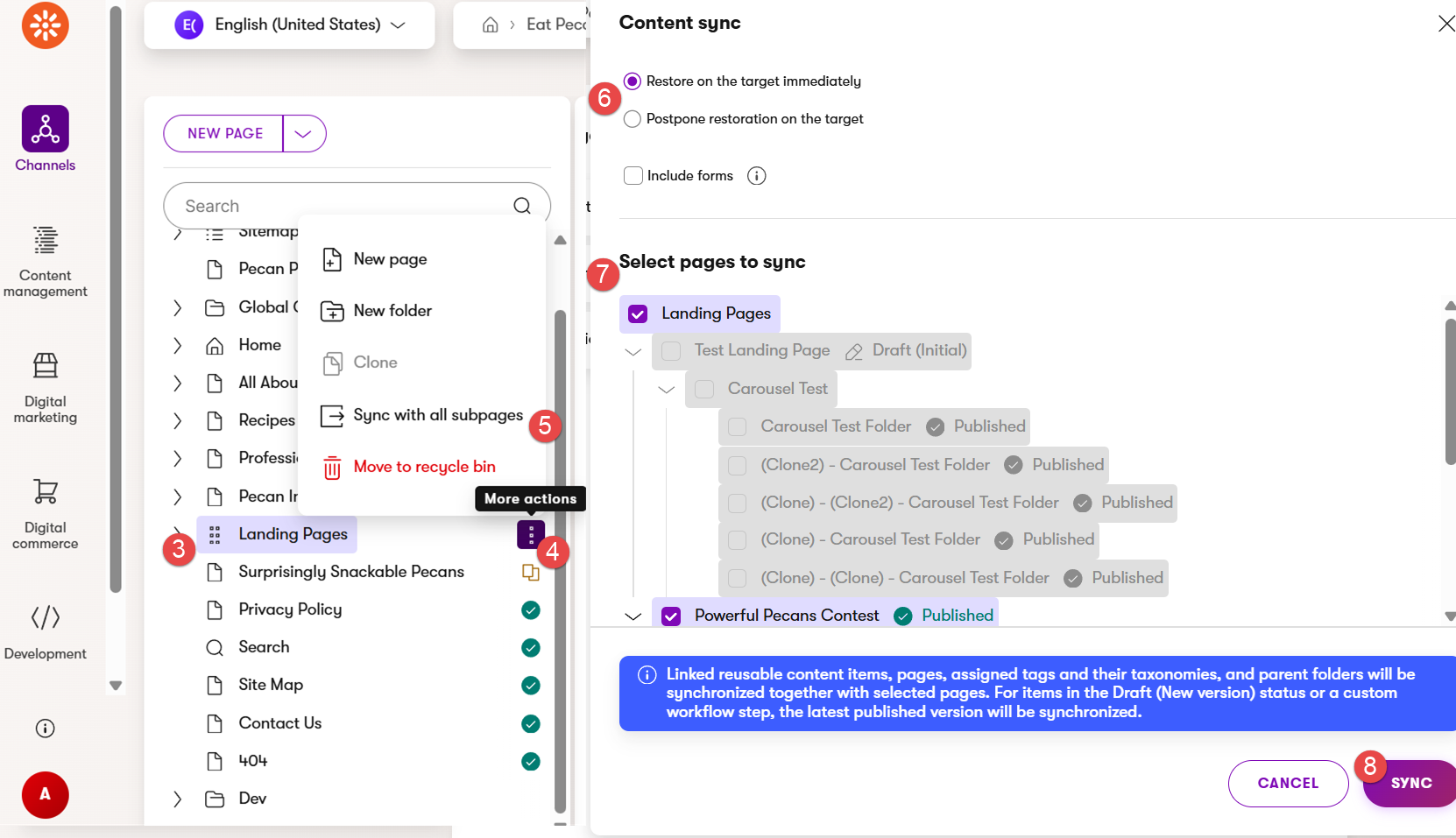
Locate the node/folder you want to synchronize
Hover over the node/folder name and click on the three dots
Click on the Sync with all subpages option
In the Content sync section, select the "Restore on the target immediately" option to synchronize content immediately, or select the "Postpone restoration on the target" option to schedule the content synchronization
In the Select pages to sync section, you can deselect the pages that you do not want to synchronize or select only the pages you want to synchronize
Click on the Sync button
A Sync successfully finished message will be displayed
How to Synchronize Content from a Single Page
Click on the Channels option on the upper left side
Click on the Channel you want to synchronize content from (e.g., Eat Pecans)
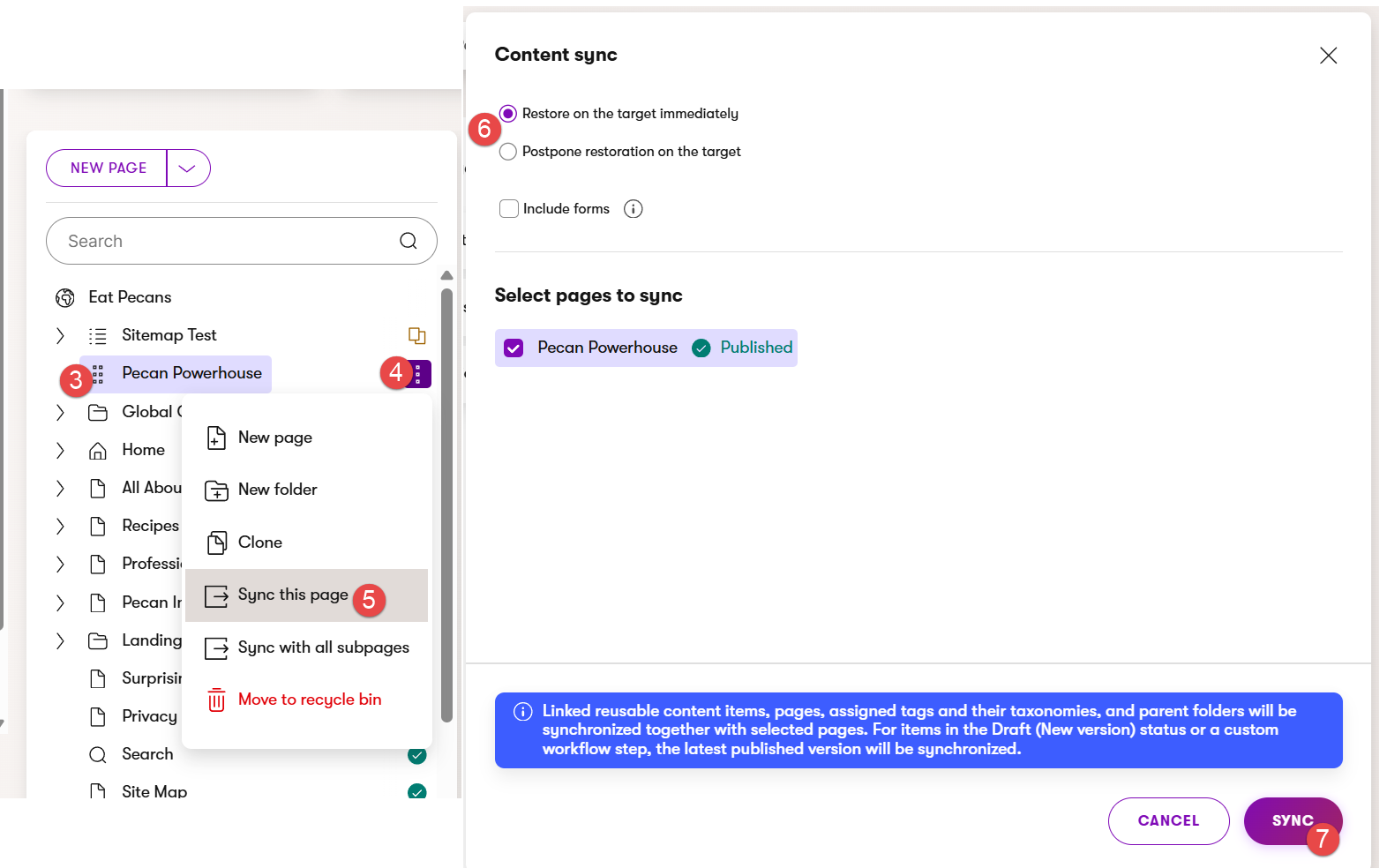
Locate the page you want to synchronize
Hover over the page name and click on the three dots
Click on the Sync this page option
In the Content sync section, select the "Restore on the target immediately" option to synchronize content immediately, or select the "Postpone restoration on the target" option to schedule the content synchronization
Click on the Sync button
A Sync successfully finished message will be displayed